Installation Guide
Follow these steps to install Vell on your Mac and start automating.
System Requirements
- macOS 12.0 (Monterey) or later
- Apple Silicon (M1 or later) — Recommended
- ~500 MB of free disk space
- Internet connection (for AI API access)
Step 1: Download
Visit the official Vell website to download the latest version:
Step 2: Install
Open the .dmg file
Double-click the downloaded *.zip file.
Drag to Applications
Drag the Vell icon into the Applications folder shortcut.
Launch Vell
Open Vell from your Applications folder. On first launch, macOS may show a security warning — click "Open" to proceed.
Tip: If macOS blocks Vell due to security settings, go to System Settings > Privacy & Security and click "Open Anyway" next to Vell's entry.
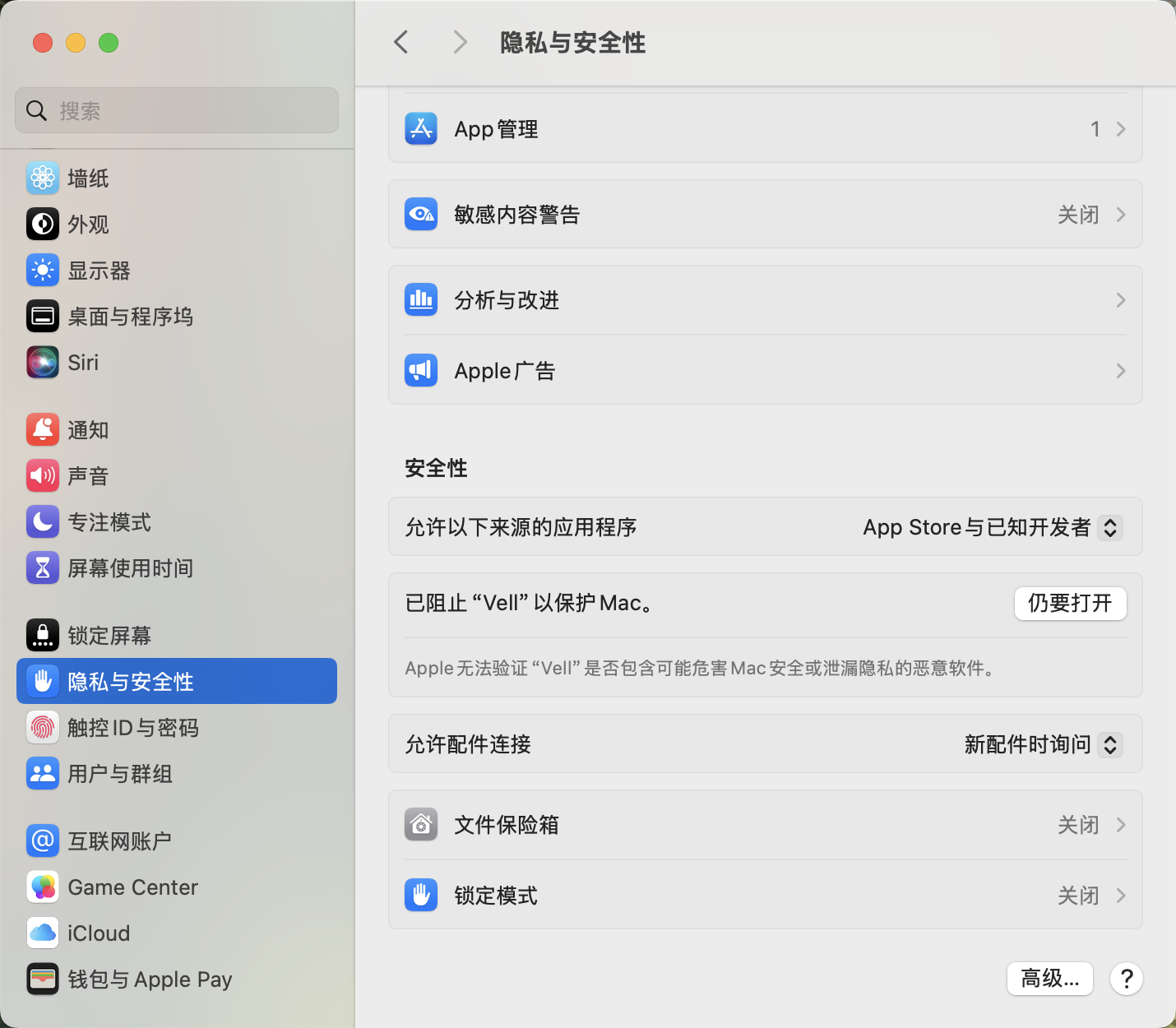
System Settings > Privacy & Security — Click "Open Anyway" to allow Vell to run
Step 3: Configure API Key
When you launch Vell for the first time and try to submit a task, you will be prompted to configure an AI provider APIKEY。 API Key Setup section below to get started.
Step 4: Grant Permissions
When Vell needs to access files or folders, it will request your permission. You can manage these in:
- System Settings > Privacy & Security > Files and Folders
- Vell will ask before accessing any folder outside its sandbox
- You can approve or deny each request individually
First Launch
Welcome Screen
When you first launch Vell, you'll see the home screen with a clean interface:
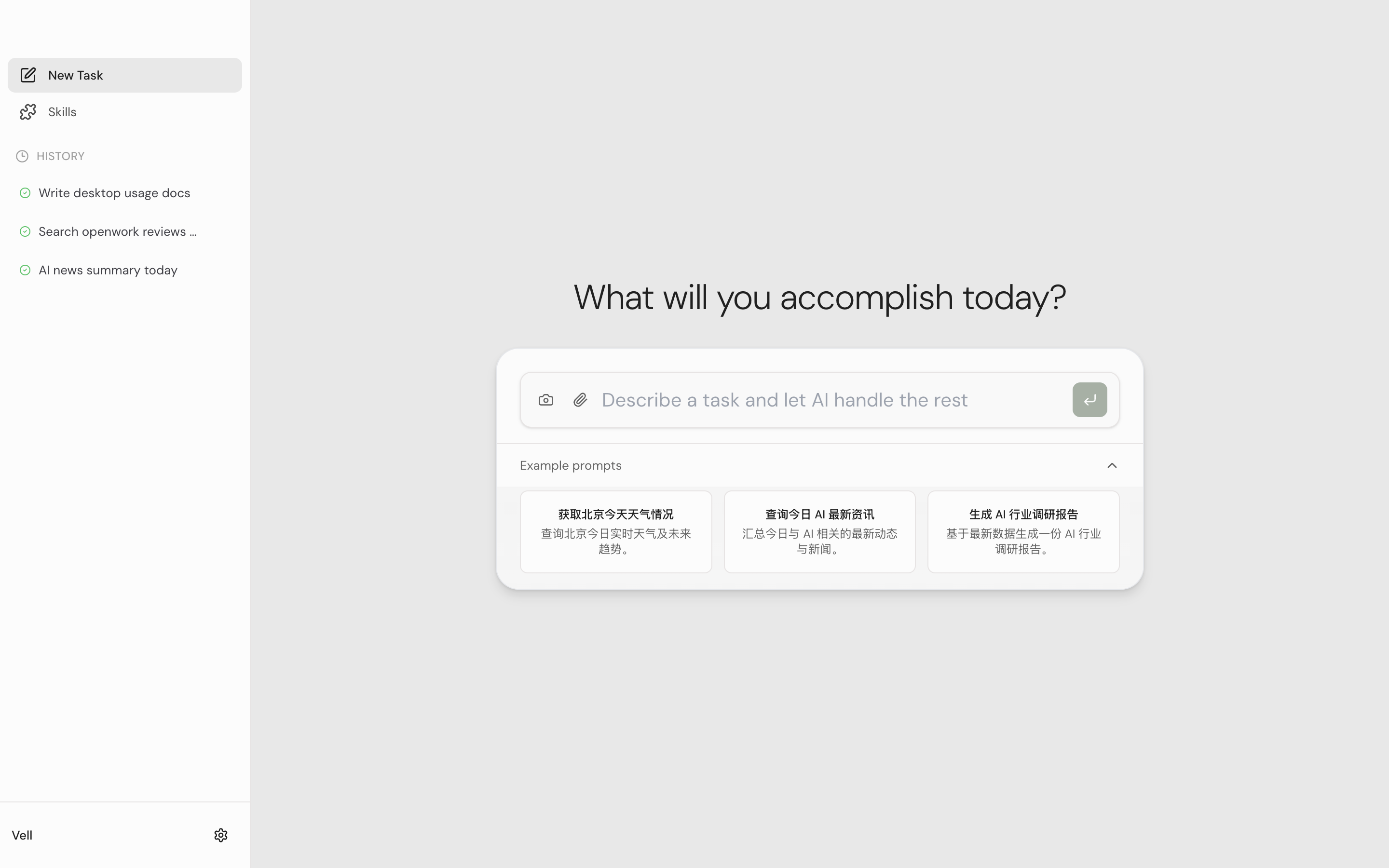
Vell home screen — task input bar with example prompts
- Task Input Bar — The main text area at the center where you describe what you want to accomplish
- Sidebar — Shows task history and navigation to Skills page and Settings
- Example Prompts — Click to see sample tasks you can try
API Key Setup
Vell uses your own AI API keys to execute tasks. Bring your own key — no subscription required.
How to Configure
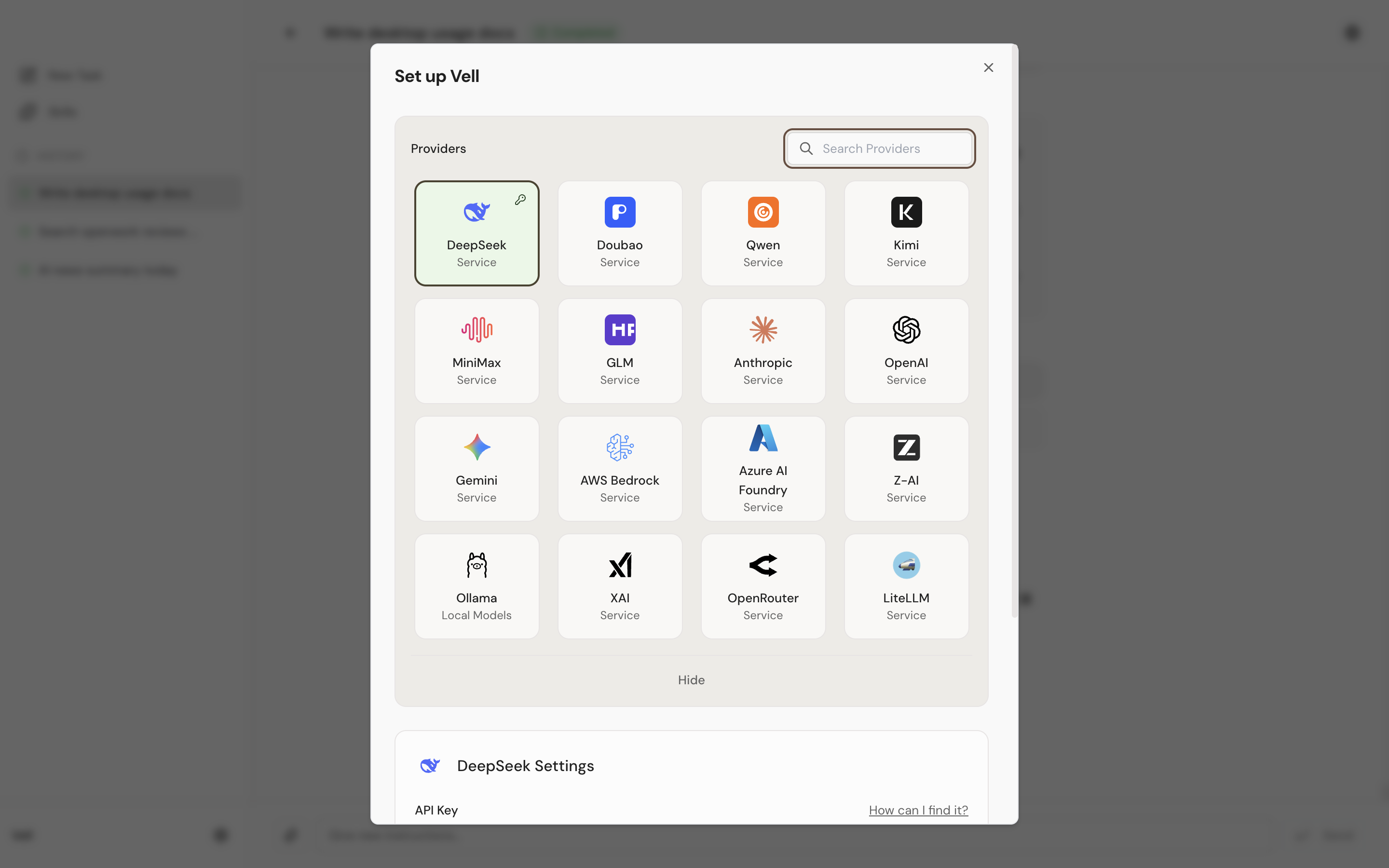
Settings dialog — select a provider, enter API key, and choose a model
Open Settings
Click the gear icon at the bottom-left of the sidebar, or try to submit a task without a configured provider.
Select a Provider
From the Provider Grid, click on your preferred AI provider (e.g., DeepSeek, OpenAI, Anthropic).
Enter API Key
Fill in the API Key and other required fields, then click "Connect". Your key is stored securely in the system keychain.
Select a Model
Choose a model from the dropdown. This model will be used by default for all your tasks.
Done
Click the "Done" button to save and close. You're now ready to start automating!
Security: Your API keys are stored in the macOS system keychain (Keychain Access) and never shared with Vell servers.
Supported Providers
Vell supports 16 AI providers. Click "Show All" in Settings to see the full list.
How to Get API Keys
| Provider | Get API Key |
|---|---|
| DeepSeek | platform.deepseek.com |
| OpenAI | platform.openai.com |
| Anthropic | console.anthropic.com |
| aistudio.google.com | |
| Ollama | No API key needed — runs locally |
Skills Overview
Skills are extensible automation modules that give Vell specialized capabilities. They are the building blocks of Vell's powerful automation system.
What are Skills?
Skills allow Vell to perform specific types of tasks. Each skill provides a set of tools and instructions that Vell's AI uses to complete tasks in a particular domain. Skills are categorized into different types:
Built-in Skills
Vell comes with essential built-in skills that are always enabled:
- Browser Automation — Navigate websites, fill forms, click buttons, extract data
- Ask User Question — Ask for user input or clarification during task execution
- File Permission — Securely manage file access permissions
- Task Management — Complete tasks, report checkpoints, report thoughts
- Skill Creator — Create new custom skills directly through conversation
Install Skills
From the Recommended List
Navigate to Skills Page
Click the 「Skills」 button in the sidebar.
Browse Recommended
Scroll down to the 「Recommended」 section to see community-contributed skills available for installation.
Click Install
Click the 「Install」 button on any skill card. The skill will be downloaded and added to your installed skills.
Enable the Skill
Toggle the switch on the skill card to enable or disable it. Only enabled skills are available to Vell's AI.
Tip: You can also create skills directly by typing 「I want to create a new skill」 in the task input. Vell will guide you through the process.
Create Custom Skills
Creating Skills via Chat
The easiest way to create a custom skill is through conversation:
-
Click 「Create skill in chat」 button on the Skills page
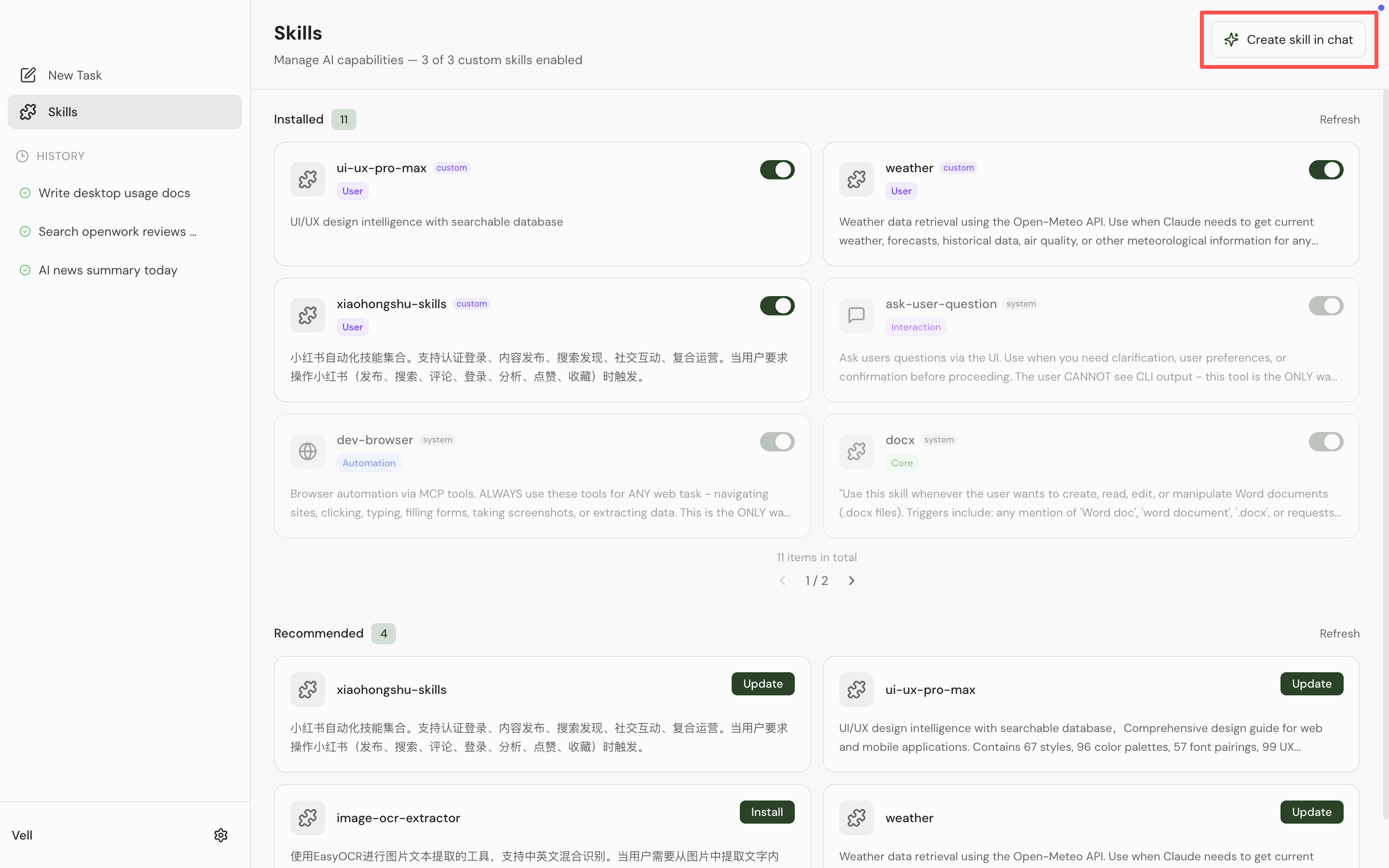
Click 'Create skill in chat' on the Skills page
-
Describe the skill you want to create (e.g., 「Create a skill that organizes my Downloads folder」)
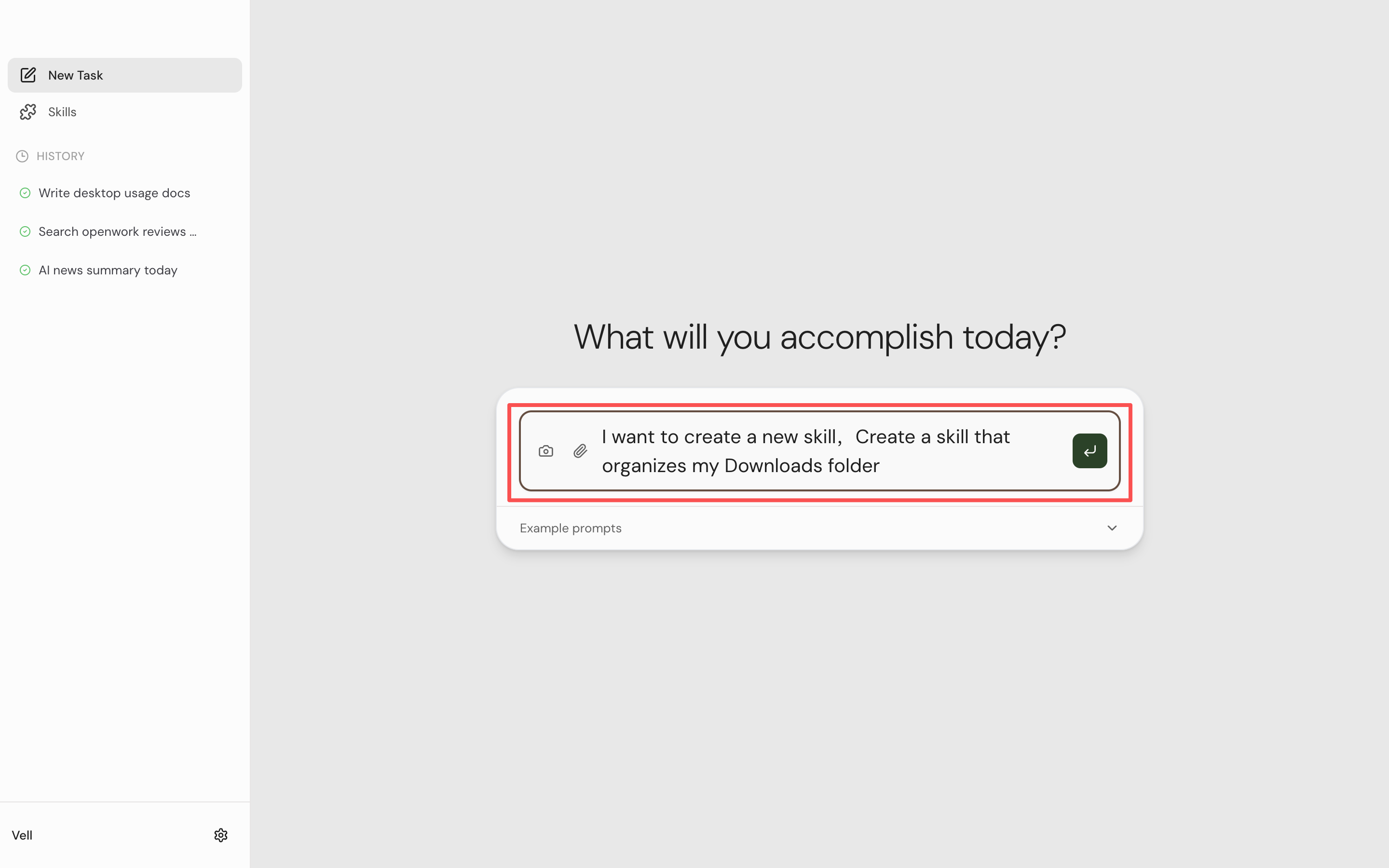
Describe what skill you want — e.g. 'organize my Downloads folder'
-
Vell's AI will generate the skill file and save it to the skills directory
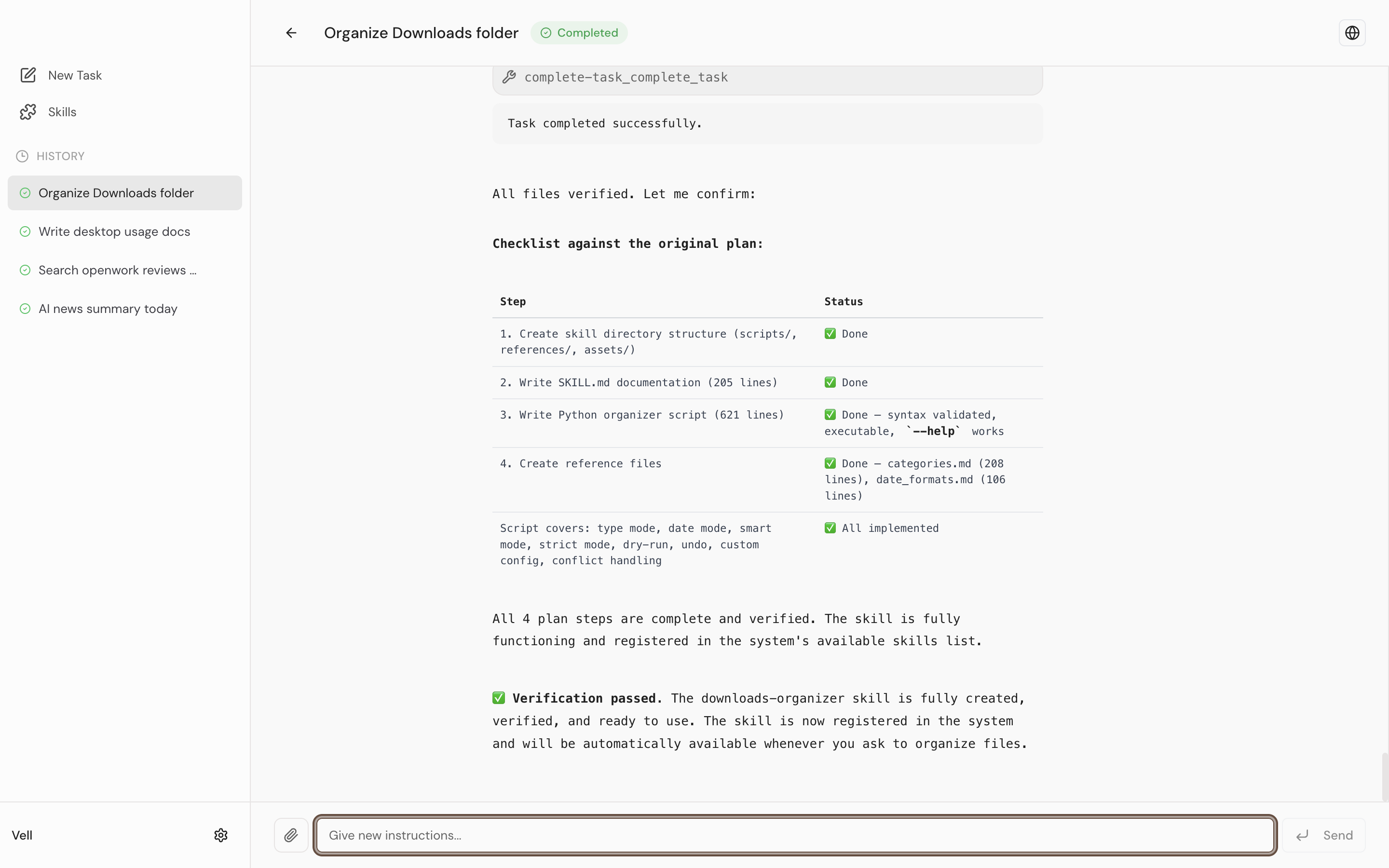
Vell's AI generates the skill and saves it automatically
- The new skill will appear in your Installed Skills list automatically
Skill File Format
Skills are stored as markdown files in the skills directory. Each skill file follows this structure:
# Skill Name

## Description
What this skill does.

## Instructions
Detailed instructions for the AI on how to use this skill.
Include specific steps, guidelines, and examples.
Example: Weather Skill Structure
Here is an example of how a real skill is structured:
// File: skills/weather/SKILL.md

---
name: weather
description: Weather data retrieval using the Open-Meteo API. Use when Claude needs to get current weather, forecasts, historical data, air quality, or other meteorological information for any location worldwide. This skill provides workflows for querying the free Open-Meteo API with no API key required.
---


  Use the Open-Meteo API at https://api.open-meteo.com/
  - For geocoding: https://geocoding-api.open-meteo.com/v1/search
  - For weather: https://api.open-meteo.com/v1/forecast
Manage Skills
Enabling / Disabling Skills
On the Skills page, you can toggle any custom skill on or off using the switch on each skill card. Built-in (system) skills are always enabled and cannot be disabled.
- User skills — Skills you installed or created. You can enable/disable them freely.
- System skills — Built-in skills that are always active (Browser, File Permission, etc.)
Running Tasks
Creating a Task
Type Your Request
On the home screen, type what you want Vell to do in the task input bar. Be as specific as possible. Example: "Organize my Downloads folder by file type"
Attach Files (Optional)
Click the paperclip icon to attach files that Vell should reference in your task.
Submit
Press Enter or click Submit to start the task. Vell will navigate to the execution view and begin working.
Task Execution View
The execution view shows you everything Vell is doing in real time:
- Messages — Vell's reasoning and actions displayed as a chat conversation
- Thinking Indicator — Shows which tool Vell is currently using (e.g., 「Reading files」, 「Running command」)
- Browser Preview — Toggle the built-in browser view to see Vell's browser actions live
- Todo Sidebar — Shows structured steps Vell has planned for your task
- Permission Requests — Vell asks for your approval before accessing files or performing sensitive actions
Follow-up Questions
After a task completes, you can ask follow-up questions or give additional instructions. Vell will continue working in the same context.
You can also attach files to follow-up messages using the paperclip icon.
Browser Automation
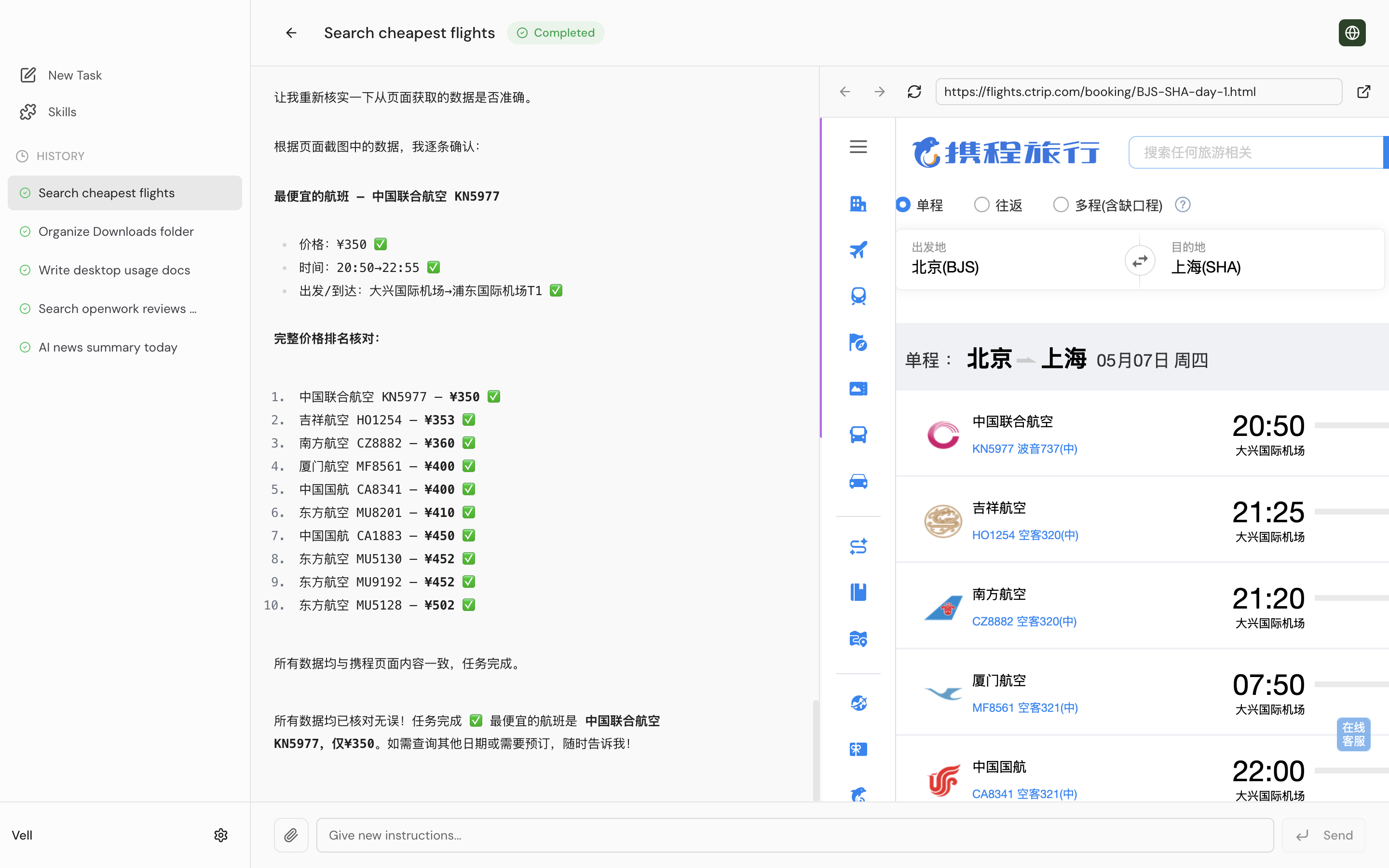
Browser automation in action — Vell navigates, fills forms, and extracts data in real time
How It Works
Vell includes a powerful browser automation engine that can navigate websites, fill forms, extract data, and perform complex web workflows — all visible to you in real time.
What You Can Do
- Search the web and scrape information
- Fill out forms and submit data
- Monitor prices and track products
- Aggregate news and content from multiple sites
- Perform multi-step web workflows
Browser Preview Panel
When Vell is performing browser actions, you can toggle the Browser Preview panel (globe icon in the task header) to watch the automation in real time. This panel shows:
- The live browser view controlled by Vell
- Navigation to URLs and page loading
- Form filling and click actions
- Screenshots taken during the task
Note: On first use of browser automation, Vell may need to download Chromium (~250 MB). This is a one-time setup.
Example: Browser Tasks
Try saying:
- Search Google for latest AI news and summarize the top 5 results
- Go to weather.com and get today's forecast for New York
- Find me the cheapest flight from Beijing to Shanghai on ctrip.com
Task History
Viewing History
All your past tasks are listed in the sidebar under the "History" section. Each entry shows the task summary and status.
- Click any task to revisit its execution details
- Task statuses: Queued, Running, Completed, Failed, Cancelled, Stopped
Re-running Tasks
You can re-run any completed task by entering a follow-up message in the execution view. Vell will maintain the context from the previous run.
Join the Community
Connect with other Vell users, ask questions, share tips, and get the latest updates.
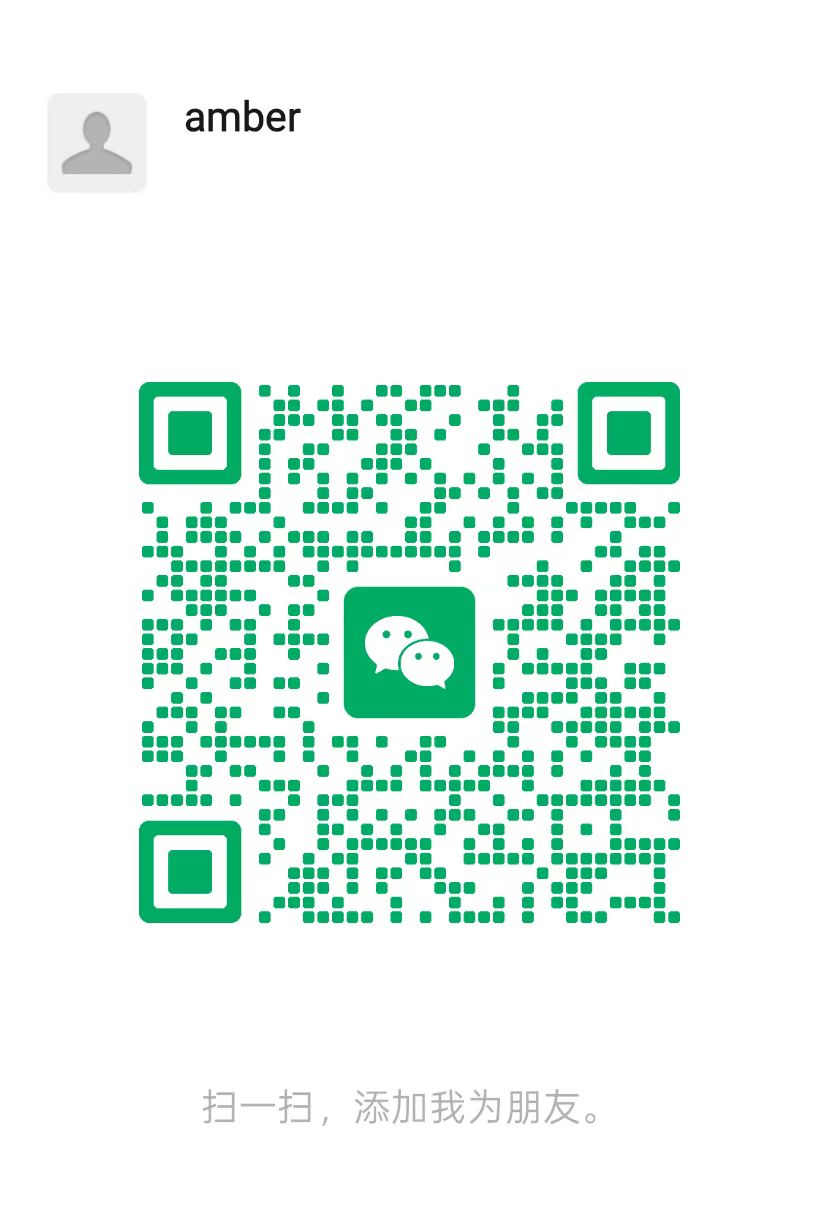
WeChat Group
Scan the QR code to join the Vell user WeChat group. Get real-time help, share your automation workflows, and connect with the community.
Frequently Asked Questions
Is my data sent to the cloud?
No, all operations run locally on your machine. Your files never leave your computer. Only task descriptions (not file contents) are sent to the AI service you choose. You control exactly what data is shared.
Do I need an API key?
Yes, you need to provide your own API keys for AI services like DeepSeek, OpenAI, Anthropic, or Google. Alternatively, you can use local models via Ollama for completely free, offline operation.
What platforms are supported?
Currently, Vell supports macOS 12.0+ on Apple Silicon (M1 or later). Windows and Linux support are planned for future releases.
Is Vell really free?
Yes, Vell is free to use. You only pay for the AI API usage (or use free local models via Ollama). There are no subscription fees or hidden costs.
How do I create a custom skill?
Go to the Skills page and click 「Create skill in chat」, or simply type 「I want to create a new skill」 in the task input. Vell's AI will guide you through the process. You can also manually create a SKILL.md file in the skills directory.
How does Vell ensure security?
Vell uses a whitelist permission model, requires user approval for each file operation, stores API keys in the system keychain, and keeps all data local. The app is open source for full transparency.
Can I use Vell without internet?
Yes, if you use local models via Ollama, Vell can operate completely offline. Browser automation tasks will require an internet connection to access websites.
How do I update Vell?
Vell checks for updates automatically. When a new version is available, you'll see an update banner at the bottom of the sidebar. Click it to download and install the latest version.